
Getting a new iPhone is exciting, but transferring your data can feel stressful. Photos, messages, contacts, and apps are not things most people want to risk losing.
Before starting any data transfer, it’s worth mentioning again that The iPhone Professor can take care of this for you. When you purchase a renewed or refurbished iPhone from our store, we can usually complete the data transfer quickly and easily, often in under an hour.
If you’d like to attempt the transfer yourself, here’s a clear guide on how to transfer data from iPhone to iPhone and what options are available.
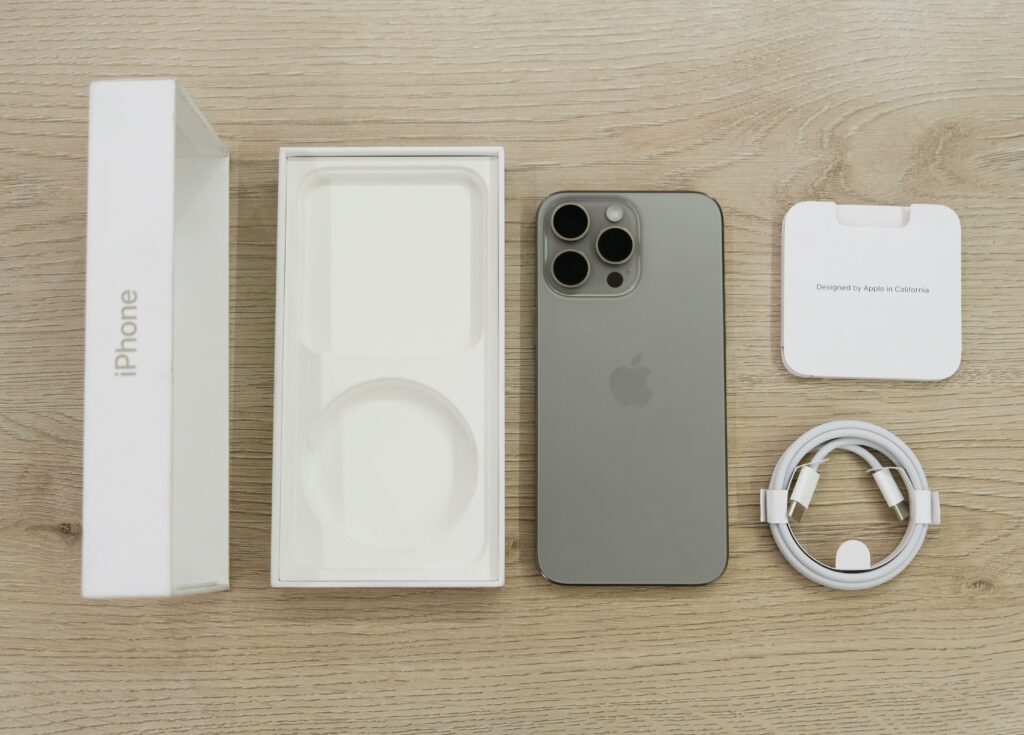
Before You Start, Make Sure:
- Both iPhones are fully charged or plugged in
- You know your Apple ID and password
- Your old iPhone is updated to the latest version of iOS
- You have a stable Wi‑Fi connection
If any of these aren’t possible, especially if the old phone has a damaged screen, our in‑store help is often the best option.
Why Data Transfer Matters When Getting a New iPhone
Knowing how to transfer data from iPhone to iPhone makes upgrading much easier. A proper data transfer ensures:
- Photos and videos move safely
- Messages and contacts remain intact
- Apps and settings appear just like your old phone
This is especially important when upgrading from an older device, a damaged phone, or when purchasing a renewed or refurbished iPhone.
If your old phone isn’t working properly, our 👉 iPhone Repair services can often help make data transfer possible.
Click to learn more: https://bendiphonerepair.com/iphone-repair/
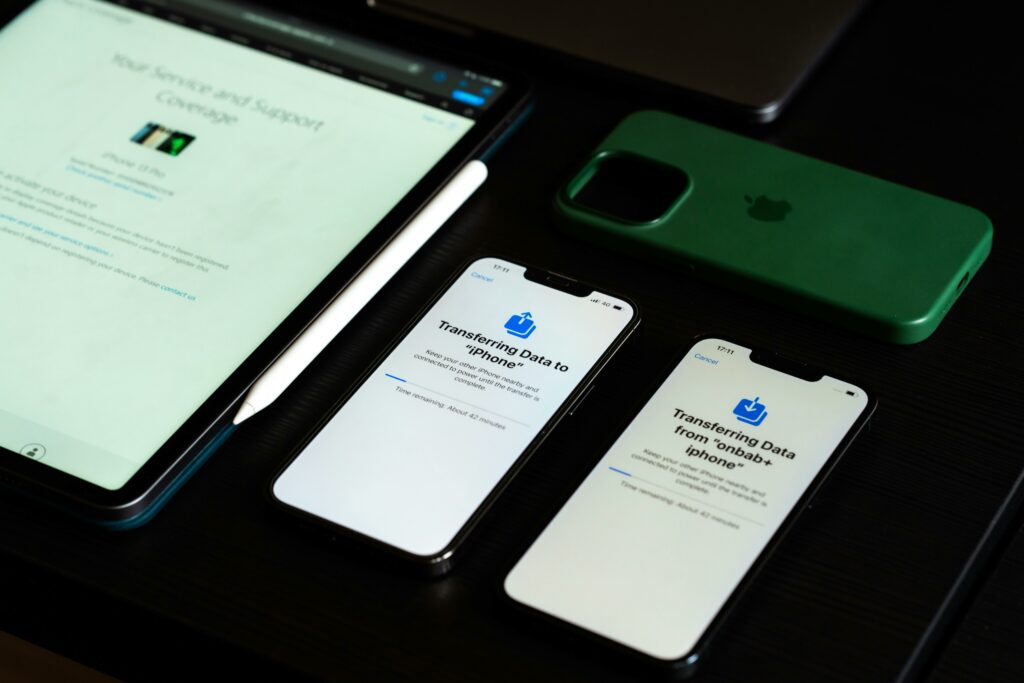
Transfer Data iPhone to iPhone Using Quick Start
Quick Start is the most common and easiest way to transfer data from iPhone to iPhone.
How it works:
- Turn on the new iPhone and place it next to your old iPhone
- Follow the on‑screen prompts that appear on the old phone
- Choose Transfer Directly from iPhone
- Keep both phones close together and connected to power
What to expect:
- Transfers can take anywhere from 15 minutes to over an hour, depending on how much data you have
- Both phones must stay unlocked and nearby
- If the transfer pauses, it often just needs more time
If the process freezes or restarts repeatedly, it’s usually a sign something needs to be adjusted.
Transfer Data Using iCloud
Transferring data using iCloud is another common option, especially if the old phone is no longer nearby.
Steps include:
- Backing up the old iPhone to iCloud
- Signing in with your Apple ID on the new iPhone
- Restoring the backup during setup
Things to keep in mind:
- You must have enough iCloud storage for a full backup
- Backup and restore times depend on internet speed
- Forgotten Apple ID passwords can stop the process completely
We see many customers run into iCloud issues, which is why having someone walk you through it in person can save time and frustration.
Transfer iPhone Data Without iCloud
Not everyone uses iCloud, and that’s okay. You can still transfer iPhone data without iCloud using other methods.
Direct iPhone‑to‑iPhone Transfer
Quick Start transfers data directly from one phone to another and does not require iCloud storage. This is often the best option if both phones are working.
Computer Backup and Restore
Another option is backing up the old iPhone to a computer using Finder (Mac) or iTunes (Windows), then restoring that backup to the new phone.
This can be helpful when:
- iCloud storage is full
- Internet speeds are slow
- You want a local backup of your data

When to Stop and Get Help
If you see repeated errors, missing data, or the transfer fails more than once, it’s usually best to stop and get assistance. Continuing to retry can sometimes cause more issues.
Common Problems When Transferring iPhone Data
Data transfers don’t always go smoothly, especially with older phones. Some common problems include:
- Apple ID issues: Forgotten passwords or locked accounts can prevent transfers
- Insufficient storage: Not enough space on iCloud or the new phone
- Broken screens: Hard to approve prompts or complete setup
- Stuck transfers: Progress bars that don’t move for long periods
- Missing data: Photos or messages that don’t appear after setup
Most of these problems are fixable, but they’re much easier to resolve with in‑person help.